Configure the Advanced Search Module
About Advanced Search
The Advanced Search component allows users to combine search terms by setting specific parameters for results. Typically, search results are smaller and more relevant than results from a basic search.
Limitations
Some SmartHub Features are unsupported by some search engines. For information about limitations to your search engine, see the "Limitations" topic for your search engine.
Access Advanced Search in the UI
- To get to Advanced Search click
 displayed on the right side of the search box, then click on Advanced Search. This opens the Advanced Search modal window.
 - Type search terms into the search boxes, and use the options shown to further refine your search.
Configure Advanced Search
- Advanced Search settings are stored in the SmartHub modules directory at <SmartHub_root>/modules/AdvancedSearch
- To configure the Advanced Search feature, copy some or all of the Advanced Search module configuration settings into your HTML page’s custom settings file and modify them as you see fit.
- This is done using the UI Editor tool
UI Editor
-
The easiest and fastest way to insert and customize the Advanced Search feature is via the SmartHub UI Editor.
-
For more information, see Use the UI Editor.
Procedure:
-
SmartHub administrators can simply click the UI Editor link from the SmartHub ADMINISTRATION page.
-
Click the Select a page link from the top menu.
-
Select (double-click) an HTML page such as Results.html page.
-
Below, the Results.html page is shown for sample purposes.
-
BA Insight recommends you use a custom folder/page for modifications. Leave the default files as templates.
-
Example: CustomPages/CustomResults.html. Default Results.html is under the top most SmartHub directory.
-
-
-
Select the Advanced mode from the top right of the page.
-
Select Advanced settings edit.
-
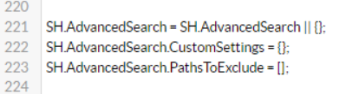
Scroll down to line 222 (this may vary), which contains the text "
SH.AdvancedSearch.CustomSettings" -
To access the available AdvancedSearch settings, click the See Default Settings link in the top right corner.
-
A new browser tab opens with all available SmartHub module settings.
- Search for the word "AdvancedSearch" on the page to quickly navigate to the Advanced Search default settings, shown below:
 SH.AdvancedSearch = SH.AdvancedSearch || {};
    SH.AdvancedSearch.DefaultSettings = {
        EnableAdvancedSearch: true,
        EnableSearchPreview: true,
        AdvancedSearchQueryTemplate: '{searchboxquery} FederatorBackends:"*"',
        ResultSourceId: "b29924a9-ec32-4c10-8892-a544b69ee121",
        PreviewTemplatePath: SH.RootLevelURL + "/modules/AdvancedSearch/templates/previewTemplate.html",
        PreviewTemplateSelectProperties: "clickUri,title,Rank,ContentSource,DocumentSummaryExtraction,DocumentLanguageExtraction,DocumentEntitiesO365,RefinableString15,RefinableString147,Role,Office,Department,sfcustomers,RefinableString121,author",
        TemplatePath: SH.RootLevelURL + "/modules/AdvancedSearch/templates/template.html",
        Title: "Advanced Search",
        Prefix: "advSearch-",
        Description: "Find documents that have...",
        PreviewDescriptionLabel: "Search preview",
        PreviewNoResultsLabel: "Sorry, no results found",
        PreviewErrorLabel: "There was a problem running the search",
        SearchButtonLabel: "Search",
        AllWords: {
            Enable: true,
            Label: "All of these words:"
        },
        ExactPhrase: {
            Enable: true,
            Label: "The exact phrase:"
        },
        AnyWords: {
            Enable: true,
            Label: "Any of these words:"
        },
        NoneWords: {
            Enable: true,
            Label: "None of these words:"
        },
        AdditionalProperties: {
            Language: {
                Label: "Only the language(s):",
                ManagedProperty: "DetectedLanguage",
                RenderMode: "checkbox",
                ValueMappings: {
                    "English": "en",
                    "French": "fr",
                    "German": "de",
                    "Japanese": "ja",
                    "Simplified Chinese": "zh-cn",
                    "Spanish": "es",
                    "Traditional Chinese": "zh-tw"
                }
            },
            ContentSource: {
                Label: "Content source:",
                ManagedProperty: "ContentSource",
                IsDynamic: true,
                RenderMode: "dropdown",
                ValueMappings: {
                    "All Results": ""
                }
            },
            ResultType: {
                Label: "Result type:",
                ManagedProperty: "filetype",
                RenderMode: "dropdown",
                ValueMappings: {
                    "All Results": "",
                    "Word Documents": "doc,docx,dot,docm,odt",
                    "Excel Documents": "xls,xlsx,xlsm,xlsb,ods",
                    "PowerPoint Presentations": "ppt,pptx,pptm,odp"
                }
            }
        },
        AddPropertyRestrictions: {
            Enable: true,
            TemplatePath: SH.RootLevelURL + "/modules/AdvancedSearch/templates/AddPropertyRestrictionsTemplate.html",
            MaxNumberOfPropertiesRestrictions: 5,
            Labels: {
                Description: "Where the Property...",
                PropertyPlaceholder: "Pick or enter property",
                OperatorPlaceholder: "Pick operator",
                ContainLabel: "Contains",
                NotContainLabel: "Does not contain",
                EqualLabel: "Equals",
                NotEqualLabel: "Does not equal",
                GreaterLabel: "Greater than",
                LessLabel: "Less than",
                OnOrBefore: "On or before",
                OnOrAfter: "On or after",
                StartsWithLabel: "Starts with",
                AndLabel: "And",
                OrLabel: "Or",
                InvalidOperatorError: "Invalid operator: ${operator}. Please choose one from the list!",
                MaximumReachedError: "You have reached the maximum number of allowed properties.",
                BlankFieldsError: "Please complete all fields of a property restriction!",
                PropertyTooltip: "After you choose a property, in order to select another one you have to detele the selected one",
                OperatorTooltip: "After you choose an operator, in order to select another one you have to detele the selected one"
            },
            ListOfProperties: {
                Property1: {
                    Label: "Author",
                    ManagedProperty: "author",
                    Type: "string"
                },
                Property2: {
                    Label: "Title",
                    ManagedProperty: "title",
                    Type: "string"
                },
                Property3: {
                    Label: "Size (bytes)",
                    ManagedProperty: "Size",
                    Type: "number"
                },
                Property4: {
                    Label: "URL",
                    ManagedProperty: "path",
                    Type: "string"
                },
                Property5: {
                    Label: "Last Modified Date",
                    ManagedProperty: "date",
                    Type: "date"
                }
            }
        }
}- Copy the AdvancedSearch settings section from SH.AdvancedSearch.DefaultSettings.
- Go back to your Advanced settings edit tab.
- Paste the copied settings inside section SH.AdvancedSearch.CustomSettings.
-
Change the
Enabledvalue to "true." - Modify additional settings as desired.
- Click Save changes.
-
Click the link Preview <html> file.html at the top of the code editor.
-
Review your HTML page in the new tab that opens.
-
Make any necessary changes back in the code editor. Repeat steps 14-18 as necessary.
-
Click Save changes.
Advanced Search Parameters
| Setting Name | Default Value | Description | |||
|---|---|---|---|---|---|
| EnableAdvancedSearch | true |
|
|||
| EnableSearchPreview | true |
|
|||
| AdvancedSearchQueryTemplate | '{searchboxquery} Federatorsearch engines:"*"' | The query template used when performing the search. | |||
| ResultSourceId | "b29924a9-ec32-4c10-8892-a544b69ee121" | The result source id used when performing the search. | |||
| PreviewTemplatePath | "/modules/AdvancedSearch/templates/previewTemplate.html" |
|
|||
| PreviewTemplateSelectProperties |
"clickUri, title, Rank, ContentSource, DocumentSummaryExtraction, DocumentLanguageExtraction, DocumentEntitiesO365, RefinableString15, RefinableString147, Role, Office, Department, sfcustomers, RefinableString121, author" |
The selected properties used when performing the search. | |||
| TemplatePath | "/modules//templates/template.html" |
|
|||
| Title | "Advanced Search" | The name of the link and the title of the modal window. | |||
| Prefix | "advSearch-" | The prefix of the ids of the advanced search html elements. | |||
| Description | "Find documents that have..." | The text displayed under the title. | |||
| PreviewDescriptionLabel | "Search preview" | The text displayed in the search preview section. | |||
| PreviewNoResultsLabel | "Sorry, no results found" | The message displayed when there are no results for the performed search. | |||
| PreviewErrorLabel | "There was a problem running the search" | The error displayed when something goes wrong with the search. | |||
| SearchButtonLabel | "Search" | The label of the "Search" button. | |||
|
AllWords |
Enable | true |
|
||
| Label | "All of these words:" | ||||
| ExactPhrase | Enable | true |
|
||
| Label | "The exact phrase:" | ||||
| AnyWords | Enable | true |
|
||
| Label | "Any of these words:" | ||||
| NoneWords | Enable | true |
|
||
| Label | "None of these words:" | The label of the section. | |||
| AdditionalProperties | Property name | In the out-of-the-box SmartHub, the additional properties are Language, ContentSource and ResultType. |
|
||
| Label | "Result type:" | The label of the section.> | |||
| ManagedProperty | "filetype" | The managed property used to filter the search results. | |||
| IsDynamic |
false |
|
|||
| RenderMode |
|
|
|||
| ValueMappings
|
{ |
|
|||
| AddPropertyRestrictions | Enable | true |
|
||
| TemplatePath | "/modules/AdvancedSearch/templates/AddPropertyRestrictionsTemplate.html" |
|
|||
| MaxNumberOfPropertiesRestrictions | 5 | Maximum number of p | |||
| Labels | Description | "Where the Property..." | The description of the section. | ||
| PropertyPlaceholder | "Pick or enter property" | The placeholder for the property input. | |||
| OperatorPlaceholder | "Pick operator" | ||||
| ContainLabel | "Contains" | The label of the "Contains" operator. | |||
| NotContainLabel | "Does not contain" | ||||
| EqualLabel | "Equals" | ||||
| NotEqualLabel | "Does not equal" | ||||
| GreaterLabel | "Greater than" | ||||
| LessLabel | "Less than" | ||||
| OnOrBefore | "On or before" | ||||
| OnOrAfter | "On or after" | ||||
| StartsWithLabel | "Starts with" | ||||
| AndLabel | "And" | ||||
| OrLabel | "Or" | ||||
| InvalidOperatorError | "Invalid operator: ${operator}. Please choose one from the list!" |
The error displayed when the entered operator doesn't exist. Replace ${operator} with the value that causes this error. |
|||
| MaximumReachedError | "You have reached the maximum number of allowed properties." | The error displayed when the maximum is | |||
| BlankFieldsError | "Please complete all fields of a property restriction!" |
The error displayed when not all fields of a property restriction are completed but a search is tried. |
|||
| PropertyTooltip | "After you choose a property, in order to select another one you have to detele the selected one" | This message will appear when hovering over the properties drop-down list. | |||
| OperatorTooltip | "After you choose an operator, in order to select another one you have to detele the selected one" | This message will appear when hovering over the operators drop-down list. | |||
| ListOfProperties
|
Property1 |
|
The list of properties the user can choose from. The property name is not important, you can name it however you like. |
||
|
|
Label | ||||
| ManagedProperty | "author" | ||||
| Type | "string" |
The type of the property. Possibile values are: string, number and date |
|||
Adding Advanced Search to a New Custom Page
In order to add the Advanced Search button on a custom page follow these steps:
-
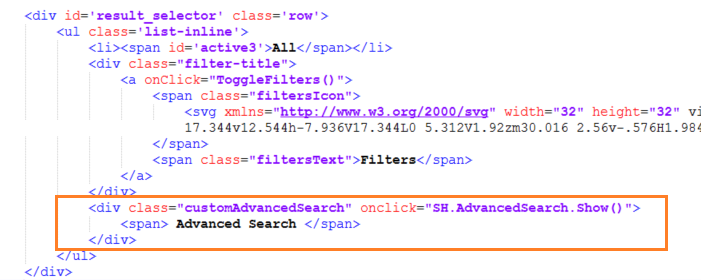
Edit your HTML page by adding the following code block:
<div class="customAdvancedSearch" onclick="SH.AdvancedSearch.Show()">
<span> Advanced Search </span></div> -
Style your button using the customAdvancedSearch class.
Example
For example, by default, the SharepointModern theme doesn't contain the Advanced Search button.
- To add it, edit the Results.html page.
- Add the code in step 1, above.